Update: April 25, 2026. Since launch the connector has grown to 29 tools (read + write across prompts, articles, audits, and competitors) and now supports OAuth 2.1 in Claude.ai. Paste the URL into Add custom connector and approve, no API key needed. See the OAuth changelog entry for what's new. The original launch post below covers the day-one read-only release.
We are excited to launch the PingAura MCP Server. This fast bridge connects your AI tools to your visibility data, audits, and content.
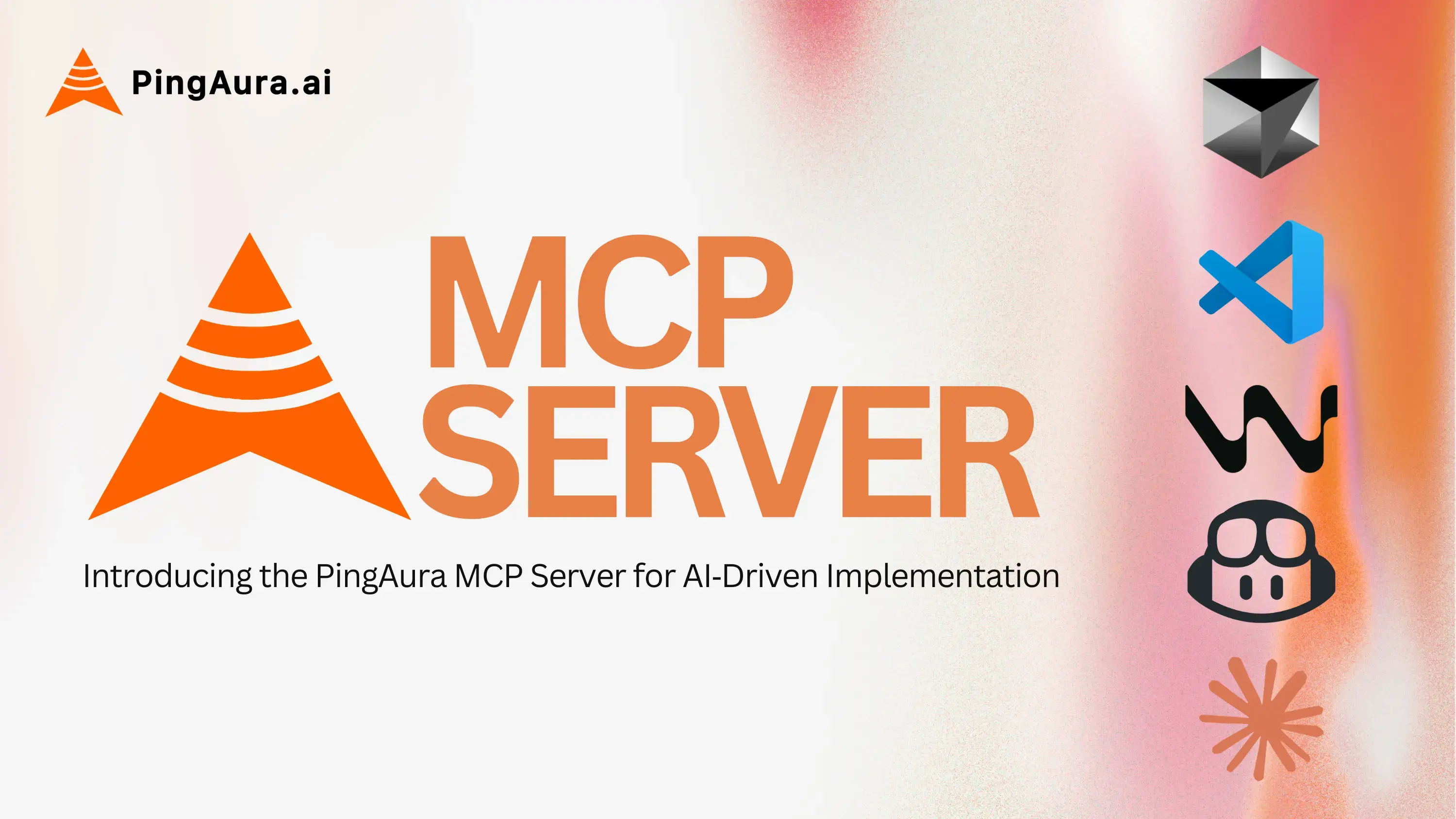
Plug it into Claude, Cursor, Codex, VS Code, Windsurf, or Perplexity. Then use 12 read-only tools to analyze, debug, and optimize. You never have to leave your editor. It works on all PingAura plans today.
What is the PingAura MCP Server, and why does it matter
The PingAura MCP Server is a secure, real-time link between your PingAura account and your AI tools. It uses the Model Context Protocol (MCP). Your AI can instantly query domains, visibility scores, audits, and content. Everything happens inside your editor or chat.
No more switching between dashboards, spreadsheets, and reports.
Instead, you simply ask:
- "What are my visibility scores this week?"
- "Show me the top technical issues to fix first."
- "Preview the latest article metadata."
And your AI assistant returns structured, up-to-date data from PingAura in seconds.
Close the gap between insight and action.
Your AI assistant becomes one interface for both analysis and fixes. You get answers that you can turn into code, content, or fixes right away.
What you can do today (12 tools)
From day one, you get 12 read-only tools that let your AI assistant understand your site deeply:
- list-domains - See all domains under your account
- get-domain - Fetch detailed domain info
- list-competitors - Track competitors in your segment
- list-visibility-runs - Review historical visibility runs
- get-visibility-summary - Grab scores, coverage, and competitor comparisons
- get-prompt-scores - Check visibility for tracked prompts and queries
- list-site-audits - Browse your audit history
- get-audit-issues - Pull specific issues filtered by severity or category
- list-articles - See all AI-generated articles
- get-article - Load full article text on demand
- list-site-pages - List every discovered page
- get-account-info - Check your subscription and account status
These tools power instant summaries and trend spotlights. Everything runs inside your editor or chat window.
For the full list of tools with detailed parameters and response formats, see the MCP Server documentation.
Exciting use cases
1. Analyse visibility without dashboards
Ask your AI assistant to:
- Summarise visibility trends week-over-week
- Flag sudden drops or spikes
- Highlight high-impact opportunities (keywords, pages, or segments)
The data comes live from PingAura. Your AI can compare current runs with past ones. You never need to open a dashboard.
2. Fix technical issues in your coding environment
With MCP, audit issues live right next to your code:
- Pull a list of high-severity errors
- Understand their estimated impact on visibility
- Generate fixes, snippets, or PR descriptions directly in your editor
Developers can triage and fix issues in context. This cuts the time from finding a bug to shipping a fix.
3. Review and optimise AI-generated content inline
Content teams can:
- Fetch article text and metadata directly
- Check SEO and AEO elements (titles, headings, keyword density, structure)
- Suggest improvements, rewrites, or optimisations
Your AI assistant becomes a real-time content reviewer. It uses live PingAura data.
4. Build programmatic workflows
Teams can also:
- Query PingAura data programmatically from custom scripts
- Automate reporting and alerts
- Integrate with internal dashboards or monitoring systems
This unlocks AI-driven growth systems. You can scale AEO and visibility work across hundreds of pages.
Key features of the current PingAura MCP release
- 12 read-only tools for domains, visibility, audits, content, and account info
- Works with Claude, Cursor, Codex, VS Code, Windsurf, Perplexity, Gemini CLI, and ChatGPT
- One PingAura API key is needed for all connections
- Available on all PingAura plans with no extra tier restrictions
Write tools are coming soon. They will let you trigger audits and create articles from your AI assistant. This turns the MCP Server into a full optimization engine.
For the full release details, see the MCP Server & API Keys changelog.
Step-by-step: How to connect the PingAura MCP Server
Step 1 - Generate your PingAura API key
- Log in to your PingAura account.
- Go to Settings, then API Keys.
- Click Generate API Key, give it a descriptive name, and copy the key.
- Keep it secure; only account owners can create or revoke keys.
This single key unlocks all MCP-based workflows.
Step 2 - Add PingAura to your AI client
Here are quick-start snippets for common clients. For more clients like Codex, Claude Desktop, Amazon Q, and ChatGPT, see the full setup guide.
For Claude (CLI / Code)
Run this in your terminal:
claude mcp add pingaura --transport http https://www.pingaura.ai/api/mcp \
  --header "Authorization: Key YOUR_API_KEY"
Verify with claude mcp list and start using tools immediately. No restart is required.
For Cursor
Add this to your global ~/.cursor/mcp.json or your project's .cursor/mcp.json:
{
  "mcpServers": {
    "pingaura": {
      "url": "https://www.pingaura.ai/api/mcp",
      "headers": {
        "Authorization": "Key YOUR_API_KEY"
      }
    }
  }
}
For other clients (Codex, VS Code, Windsurf, Perplexity, Gemini CLI, ChatGPT), see the full docs.
Step 3 - Save, restart, and test
- Save the configuration file.
- Restart your AI client.
- Test with prompts like:
- "Fetch my visibility data for this week."
- "Show me the latest technical audit issues."
- "List the PingAura tools available."
If the connection is correct, your AI assistant will return structured PingAura data in real time.
Step 4 - Integrate into daily workflows
- SEO / AEO teams: Monitor trends, spot opportunities, and prioritise pages.
- Developers: Fix audit issues inside your editor and shipping cycle.
- Content teams: Review and optimise AI-generated content inline.
Once this loop is running, build reusable prompts that query PingAura on demand.
Best practices to use MCP effectively
- Ask specific prompts. For example: "Compare this week's scores with last month."
- Use MCP during work, not just for reports.
- Build prompt templates for recurring checks (weekly summaries, audits).
- Add MCP to standups, PR reviews, and content sprints.
FAQs
What is the Model Context Protocol (MCP)?
MCP is an open standard. It lets AI assistants access external data sources in a secure, structured way. It replaces manual exports, CSVs, and copy-paste with direct API queries.
Is the PingAura MCP Server available on all plans?
Yes. The MCP Server and all 12 read-only tools work on every PingAura plan. You just need an API key.
Can I modify data using the MCP Server right now?
Not yet. The current release is read-only. Write tools for audits and articles are coming soon.
Which tools are supported?
Any client that supports HTTP-based MCP servers. This includes Claude, Cursor, Codex, VS Code, Windsurf, Perplexity, Gemini CLI, and ChatGPT.
Do I need deep technical expertise to set this up?
No. Just paste the config JSON and your API key. Developers can extend it with custom prompts later.
Why this is the future of AI-driven SEO and AEO
The PingAura MCP Server moves teams from dashboards to AI-driven action. Your AI assistant becomes:
- A visibility analyst that spots trends and chances to grow.
- A technical SEO helper that finds and explains audit issues.
- A content co-pilot that checks and improves AI text.
All powered by live PingAura data, inside the tools you already use.
Ready to get started? Head to the MCP Server documentation for the full setup guide, or check the changelog for release details.