Account setup on PingAura
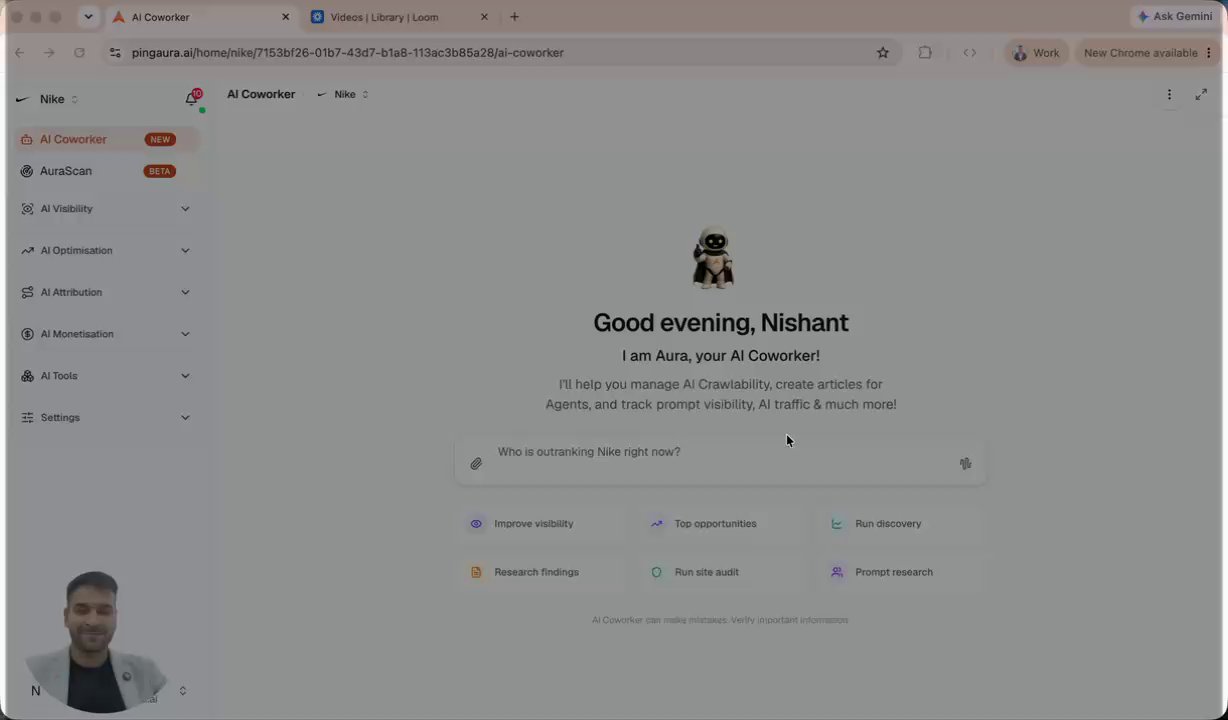
The first ten minutes in PingAura: invite your team, confirm the brand memory that every agent reads from, and find your plan, quota, active models, and integrations.
Walkthrough · 1:41
What this demo covers
- Invite team members from Settings, Teams, Invite members. They sign up from the email and land on your domain.
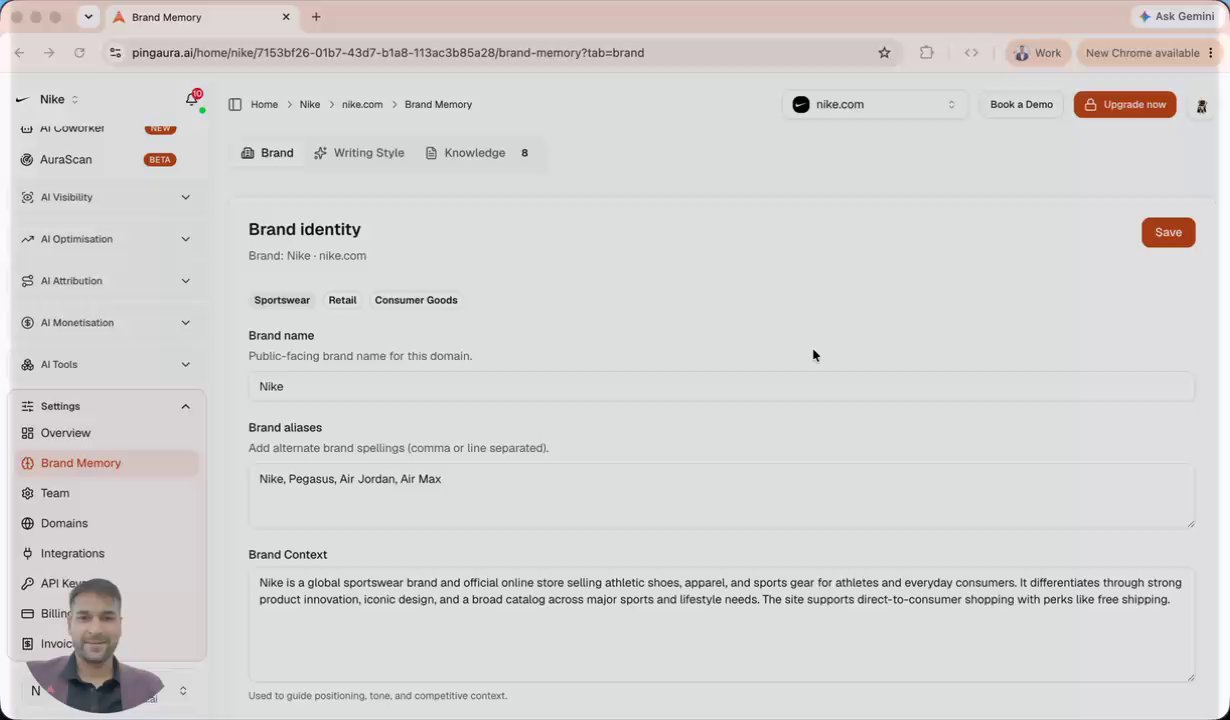
- Confirm your brand name and aliases in brand memory, and add sub-domains or sub-brands that belong to you.
- Set location, language, tone of voice, formatting preferences, and a Flesch-Kincaid readability level. The site health agent and the article agent both read these.
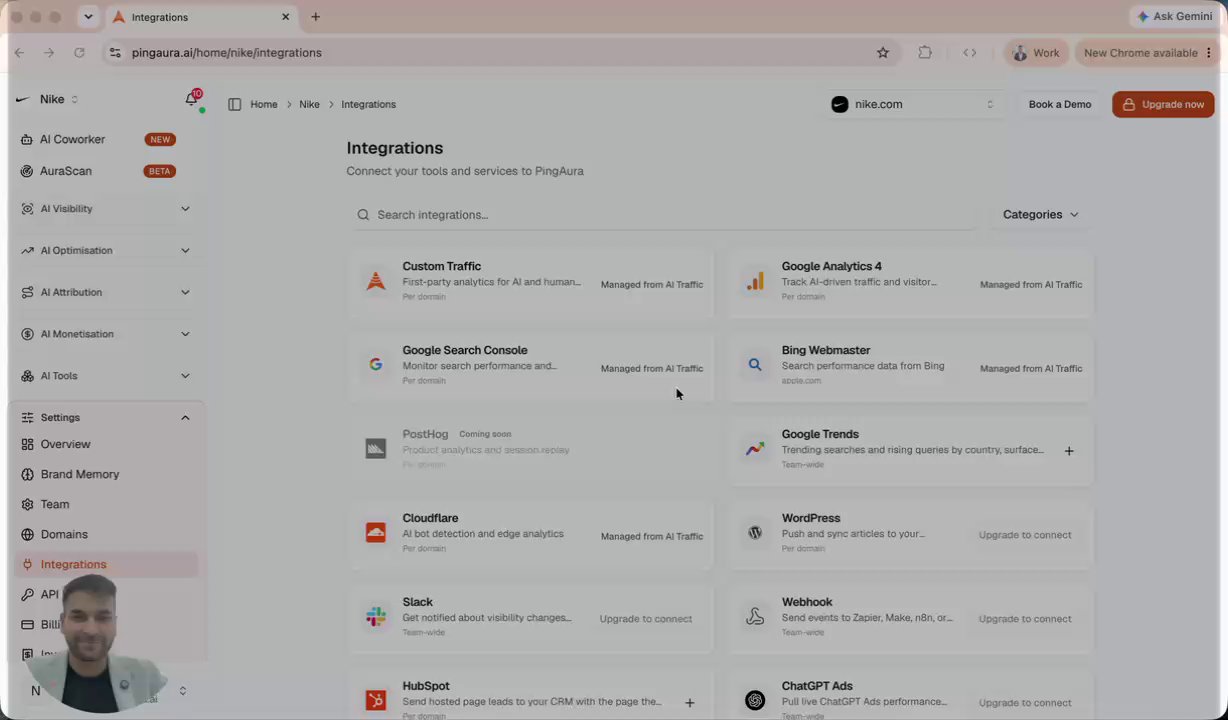
- The Overview page in settings carries your plan, visibility score, coverage, top citations, quota limits, active models, and available integrations.
In this demo
- 0:01Invite your team members
- 0:28Confirm brand name, aliases, and context
- 0:46Writing style, tone, and readability level
- 1:18The settings overview: plan, quota, and models
Frequently asked questions
- How do I invite team members to PingAura?
- Open Settings, choose Teams, then Invite members, and add their email addresses. Each person gets an email invitation, and once they sign up they are added to your domain.
- Why does PingAura ask for a readability level during setup?
- The readability level, based on the Flesch-Kincaid scale Google uses, tells the article agent how to pitch the content it writes for you. Grade 7 to 8 suits blogs and marketing material.
- Where do I check my plan and quota?
- The Overview page under settings shows your current plan, quota limits, visibility score, coverage, top citations, the AI models active on your account, and the integrations available to you.