PingAura AI for Zapier
Agentic Marketing across your other apps: send new leads, site issues, visibility scores and published articles to the tools your team uses, and create prompts, run audits, add competitors and get your visibility score from any Zap.
Updated
PingAura AI: Agentic Marketing works inside Zapier, so your AI visibility work can run on its own across the 10,000+ apps Zapier connects to. PingAura tells your other tools when something happens, and your other tools can ask PingAura to do something.
What you can automate
- A new lead from an AI-sourced visit goes straight to your CRM, Slack or email.
- A high-severity site issue opens a ticket in Jira, Linear or Asana.
- A finished visibility run posts the AI AuraScore to Slack or adds a row to Google Sheets.
- A published article is shared to LinkedIn or your newsletter.
- A competitor submitted in a form or added to a sheet starts being tracked.
- A site audit runs when you publish a page in your CMS.
- Prompts are created from a sheet of keywords.
Ready-made Zaps
These Zaps are a good place to start. Each one runs on its own once it is on.
- New lead to Slack: a new lead posts its page, AI source and score to a Slack channel. Keep contact details out of shared channels.
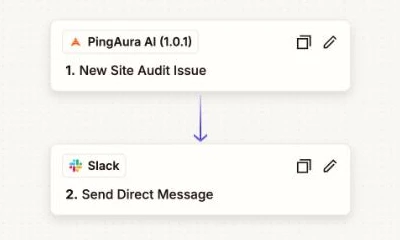
- Critical issues to the site owner: a critical site issue on your domain sends a Slack DM to whoever owns the site.
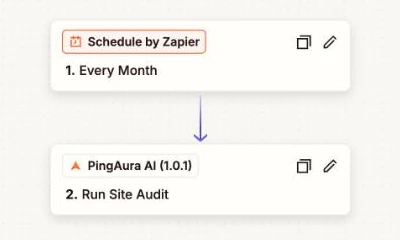
- Monthly site audit: a monthly schedule runs a site audit, so your pages are checked without anyone remembering to.
- Visibility after every run: when a visibility run finishes, a Slack DM shares the AI AuraScore and Share of Voice.
- New article alerts: a published article sends a Slack DM.
- Competitors from a table: a new row in a Zapier Table of competitors starts tracking that competitor.
- Prompts from a table: a new row in a Zapier Table of prompts, with a prompt and a topic, creates the prompt.
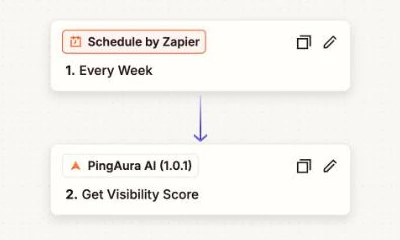
- Weekly score for your report: a weekly schedule gets your visibility score, ready to drop into a report.
Three of these Zaps, as they look in the Zapier editor:
Who can use it
Anyone with a PingAura account can connect. Each trigger and action works with the features your plan includes, and stops working if your plan expires or an invoice stays unpaid.
- New Lead needs Lead Pages on your plan.
- A lead's name, email, phone and message are included only for workspace owners on a plan with Enterprise Reporting, the same rule as the leads export. Everyone else gets each lead with those fields empty.
Connect PingAura to Zapier
- Open the invite link you were sent, and accept it. Or, in Zapier, create a Zap and search for PingAura AI.
- Choose a trigger or action, then click Sign in to connect your account.
- Sign in to PingAura and pick the workspace Zapier should use.
- Leave Modify your data ticked if your Zaps will create prompts, run audits or add competitors. Read-only is enough for the triggers and Get Visibility Score.
- Click Approve. You go back to Zapier, connected.
- In each trigger or action, pick the Domain it should work on.
There is no API key to copy. See Connecting apps with OAuth for more on the consent screen.
Triggers
| Trigger | When it fires |
|---|---|
| New Lead | One of your lead pages captures a new lead. Each check looks at leads from the last hour |
| Visibility Run Completed | A visibility run finishes. Includes the AI AuraScore, Share of Voice and Mention Rate it measured, with the last two also as percentages |
| New Site Audit Issue | A completed site audit finds an issue at or above the Minimum Severity you choose. A page that is audited again reports its open issues again |
| Article Published | An article is published |
Zapier checks for new items on a schedule. How often depends on your Zapier plan, so a trigger can fire a few minutes after the event in PingAura.
If a Zap is turned off for more than an hour, leads captured in that time are not sent when you turn it back on. They are still in your PingAura lead inbox.
Actions
| Action | What it does |
|---|---|
| Create Prompt | Adds a prompt to track in AI answers. Topic is required, and is created if it does not exist yet |
| Run Site Audit | Audits up to 50 of the domain's tracked pages. Each page uses one unit of your site audit quota |
| Add Competitor | Starts tracking a competitor domain, for example competitor.com |
| Get Visibility Score | Gets a domain's latest AI AuraScore, Share of Voice and Mention Rate, for the latest run or the last 7, 15 or 30 days. Returns Found as false if no visibility run has finished yet |
Example: new leads in Slack
- Create a Zap with PingAura AI → New Lead as the trigger and pick your domain.
- Add Slack → Send Channel Message as the action.
- Map AI Source, Lead Page Path and Lead Score into the message, then turn the Zap on.
Contact details are personal data. If your Zap includes name, email or phone, send it to a private channel or a direct message, not a channel the whole company can read.
Disconnecting
In Zapier, open Apps, find PingAura AI and remove the connection. Zaps that use it stop running. Your data in PingAura is not affected.
To connect again later, sign in from any PingAura AI step and approve.